
Get Verified.
Stay On The Map.
Google wants your practice to verify its Business Profile? This is the exact process we walk CHIROBASIX clients through. Fix the profile, prep the office, record one video Google accepts, and know what to do if Google says no.
- Show the 3 things every Google reviewer checks for
- A shot-by-shot video plan for your office
- Fixes for 10 common verification problems
To verify a chiropractic office's Google Business Profile by video, you record one unedited take, at least 30 seconds, live in the Google Maps app. It must show three things: your location (street signs, building number), that the practice is real (your name on a permanent sign, equipment) and that you run it (keys, staff-only areas, business documents).
One Missing Shot.
Back To Square One.
Google gives you one take, no edits, and a reviewer checking for three specific things. Most offices hit record without a plan, miss one, and wait days to hear back. This guide gets every shot into the first video.
No Plan For The Video
You film whatever is in front of you, and the reviewer never sees the street sign or proof you run the practice.
Profile Doesn’t Match
A keyword in the business name or an old suite number, and what the camera shows doesn’t match what Google has.
Vague Rejections
“Review issues” tells you what was missing, not how to film it. The guide shows the fix for each one.
Four Phases.
One Clean Video.
An interactive checklist that saves your progress, a printable PDF, and separate steps for offices and for chiropractors who travel to patients.
Fix The Profile First
Name, address, category, phone and hours set so what Google has matches what the camera will see.
Get Ready
Your sign, keys, one business document and a clear route, with patients and their information out of frame.
Record The Video
One take, at least 30 seconds, shot by shot: the street, the sign, the key, the practice, the paperwork.
After You Submit
What to do (and what not to touch) while Google reviews, and how to respond to “Review issues.”
Google Said No.
Here’s The Fix.
Google’s rejection notes tell you what was missing, not how to film it. The guide pairs each message with the shot that fixes it, plus what to do when the problem isn’t the video at all.
- There’s no video option
- Rejected again and again
- “Get verified” came back
- Profile suspended
- Edits stuck on pending
- Separate doctor profiles
- We moved or renamed
- Google says“Business name not visible on storefront”
Film your sign up close, in daylight, and make sure it matches the profile name exactly. Banners don’t count.
- Google says“No nearby area shown”
Start at the nearest street sign, not your door, and pan slowly to your building number and neighbors.
- Google says“Missing proof of authorization to operate the business”
Unlock the door on camera, open a staff-only room, and hold up a business license with numbers covered.
Verified Is Step One.
Ranking Is The Goal.
Verification unlocks your profile. Where you show up depends on what you do with it next, and your ranking changes block by block across your city.
Here’s a real client. Optimal Chiropractic in West Fargo, ND went from an average map rank of 12.1 to 2.2 in 8 months.
- Every profile field complete and matching your website
- New photos and Google posts every week
- A review request after every visit, every review answered
- Your name, address and phone matched across directories
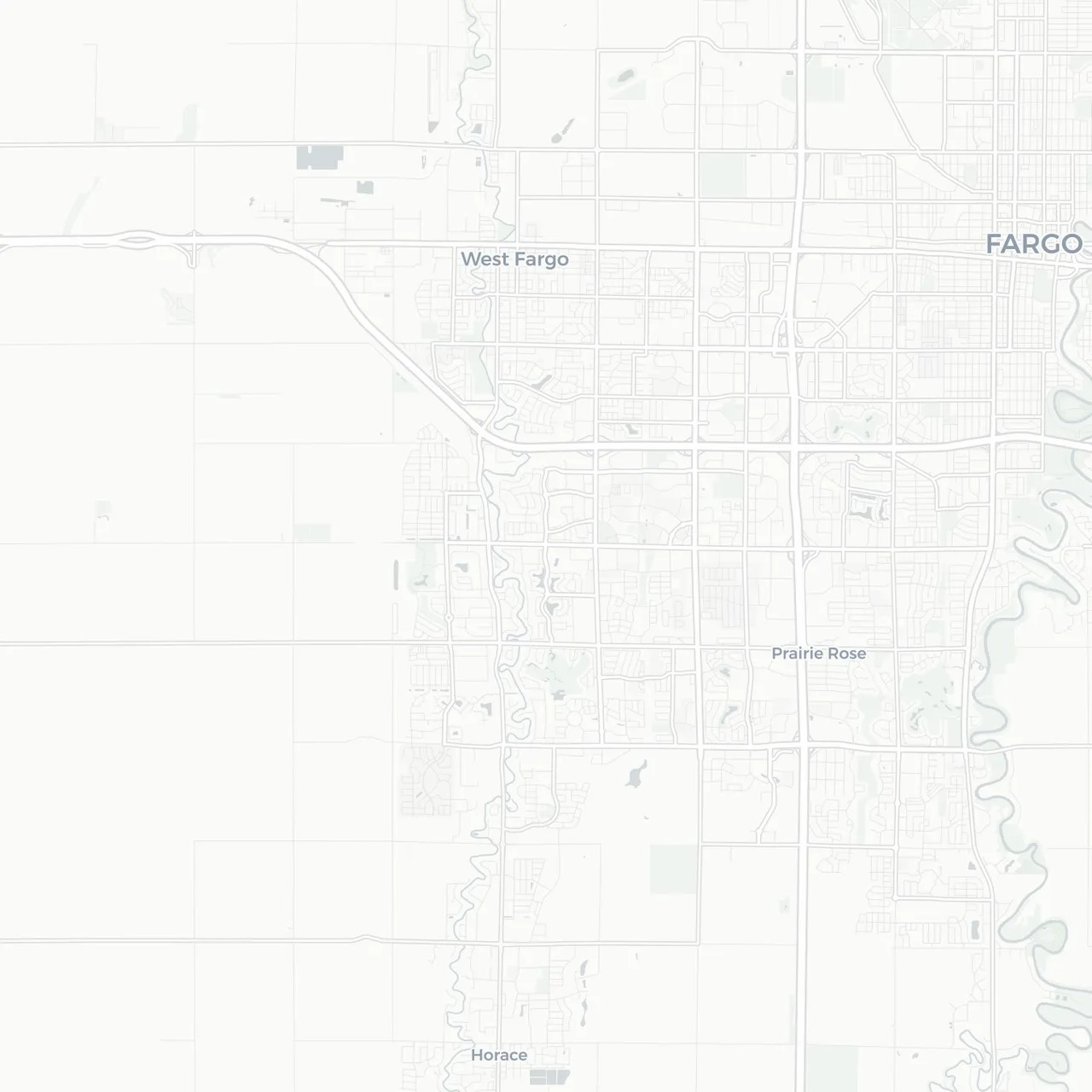
A 49-point Google Maps scan for “chiropractor” around Optimal Chiropractic, Mar 1, 2024 vs Nov 1, 2024. Each dot is where the practice ranked when searched from that spot. See the full case study or how our local SEO works.
Map data © OpenStreetMap contributors, © CARTO.

Written By Nick Fischer
Nick is the founder of CHIROBASIX, the marketing agency that works exclusively with chiropractors nationwide. His team keeps clients' Google Business Profiles verified, current and ranking.
This guide is the process we walk our own clients through when Google asks them to verify. It's built from Google's own help pages, updated November 2026.
Get Verified. Then Get Found.
Drop your email below and the guide opens right away: the interactive checklist, the shot-by-shot video plan, and a printable PDF.
Quick Answers
Still have a question? Email us. We’ll get back within one business day.