
ChatGPT Business Hub for Chiropractors: How to Claim, Verify and Optimize Your Practice
ChatGPT Business Hub launched Nov 10, 2026. Step by step for chiropractors: claim your practice, verify it by DNS, pass the ID check and optimize the listing.
ChatGPT Business Hub is OpenAI's new dashboard, launched November 10, 2026, for managing your practice's profile inside ChatGPT. When ChatGPT recommends your practice, patients can open that profile. Setup takes three steps: claim the listing and verify your website by DNS, pass an ID check, then fill in every field.
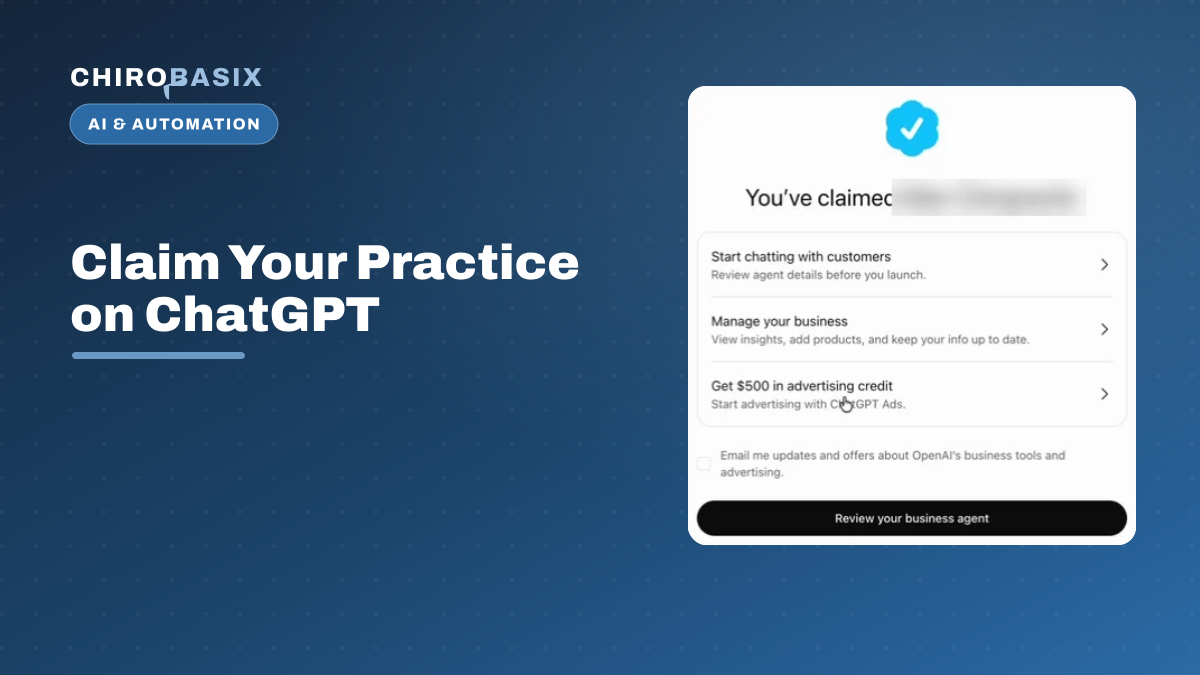
TL;DR: On November 10, 2026, OpenAI launched Businesses in ChatGPT, and with it ChatGPT Business Hub (chatgpt.com/business-hub), the place to manage your practice’s profile inside ChatGPT. Think of it as a Google Business Profile for ChatGPT. Your practice likely already has a listing, built without you, from data you didn’t check. Getting it right takes three jobs: (1) claim the listing and verify your website by DNS, (2) pass an ID check with a government ID, a selfie and your EIN, and (3) fill in every field: category, description, contact, photos, location and hours. We’ve done this for our SEO clients all week. Below is exactly how, with screenshots from our team’s training videos (client details blurred).
Patients have already started asking ChatGPT the questions they used to type into Google: “Who’s a good chiropractor near me for sciatica?” or “Which chiropractor in town is open on Saturday?” As of this week, when ChatGPT answers with your practice, the patient can tap through to a profile card with your address, phone, website, hours and photos.
The question is who controls that card. Right now, for most practices, the answer is nobody.
Why ChatGPT Business Hub Matters for Your Practice
Your ChatGPT listing exists whether you claim it or not. OpenAI’s terms for Businesses in ChatGPT say it can create and display a business listing “regardless of whether you claim, manage, or cease managing it,” and fill in details from other sources. When we searched for our clients this week, nearly every one already had a listing, built from public data nobody at the practice had checked.
That has real consequences for patients:
- Wrong details send patients to the wrong place. One client’s ChatGPT listing still showed an address mistake we had fixed on Google Maps weeks earlier. A new patient who trusts that card shows up at the wrong door or calls a dead number, and you never hear about it.
- Empty profiles lose to complete ones. A patient comparing two practices in a chat sees one card with photos, hours and a description, and another with a name and a pin. You know which one they call.
- First impressions now happen inside the chat. For a growing share of new patients, the ChatGPT card is the first thing they see about your practice, before your website and before your reviews.
- You can’t take a published profile back. OpenAI’s help page says published profiles can’t be deleted or unpublished. The facts have to be right.
The upside is just as plain: this costs nothing but an hour, and almost nobody has done it yet. Searches for “ChatGPT Business Hub” only started on launch day, November 10. Practices that claim and complete their listings now are setting up the profile patients will see for years.
One honest caveat: OpenAI’s help page says claiming a profile “doesn’t change its visibility in ChatGPT.” Claiming won’t move you up a ranking. What it does is make sure that when ChatGPT does recommend you, the patient sees accurate, complete information and can reach you. That’s the part you control, so control it.
What Is ChatGPT Business Hub?
ChatGPT Business Hub is OpenAI’s dashboard for managing your business’s profile inside ChatGPT, and it costs nothing to claim today. It’s part of Businesses in ChatGPT, which OpenAI announced on November 10, 2026 as a beta. Once you’ve claimed and verified your listing, Business Hub lets you edit your business details, add photos and hours, and see insights such as how often ChatGPT mentions your practice and how many people click through to your website.
For local businesses like a chiropractic office, OpenAI’s help page says you can currently claim only an existing U.S. listing. You can’t create one from scratch, which is one more reason to go find yours.
If you’ve managed a Google Business Profile, most of this will feel familiar:
| Google Business Profile | ChatGPT Business Hub | |
|---|---|---|
| Where patients see it | Google Search and Google Maps | ChatGPT answers, as a profile card |
| Exists before you claim it | Often | Yes, OpenAI can create it from other sources |
| Ownership check | Postcard, phone, video or instant | Website domain (DNS), business phone, email or Shopify, depending on the listing |
| Identity check | Sometimes, on reverification | Always, before you can edit (government ID, selfie, tax number) |
| Reviews on the profile | Yes | No review section today |
| Insights | Views, calls, directions, clicks | Mentions, profile views, website clicks, top discovery topics |
| AI chat with your business | No | “Business agents,” not yet open to local practices |
| Cost | Free | Free to claim (no pricing published for the beta) |
What You Need Before You Start
Gather these first. The ID check in Step 2 asks for things most people have to go looking for, and the flow is easier in one sitting.
| You’ll need | Why | Where to find it |
|---|---|---|
| A ChatGPT login for the practice | The claim is tied to the account that makes it | Use a shared practice or agency account, not a staff member’s personal one |
| Access to your domain’s DNS | To add the verification record | Cloudflare, GoDaddy, Squarespace or wherever your domain is managed (your web team has it) |
| A government-issued ID | For the identity check | Driver’s license, state ID or passport of the person doing the check |
| A phone with a camera | To scan the ID and take a selfie | The flow hands off from your computer with a QR code |
| Your practice’s EIN | The identity check asks for the business’s tax number | Your IRS EIN letter or your accountant |
| The address on your EIN paperwork | It must match the tax record | Your IRS EIN letter (it may differ from your office address) |
| Your front desk email | For the contact field, which sends a verification code | Someone at the front desk has to read you the code |
| A short description (about 280 characters) | The description field has a limit | Trim your Google Business Profile description |
| Your best office photos | To fill out the profile | The same photos you use on your website and Google profile |
Who should do it? The practice owner, an office manager or your marketing agency. Our team runs the claim and ID check for our SEO clients as authorized contractors, using our agency ChatGPT account and our own IDs. The one thing we can’t get without you is the EIN.
Step 1: Claim Your Listing and Verify It With DNS
Find your practice
Sign in to ChatGPT with the practice’s account and go to chatgpt.com/business-hub. You’ll land on a search page that says “Reach new customers and grow your business with ChatGPT.” Type your practice name.
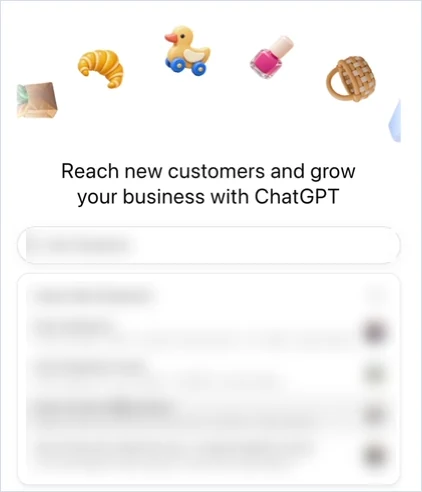
Check the address before you click. Practices with similar names show up together, and the right listing may carry an old or slightly wrong address. In our case, the correct listing still showed an address problem that had been fixed on Google Maps but hadn’t reached ChatGPT yet. Pick the listing that is clearly yours, even if a detail is off. You’ll correct it in Step 3.
Start the claim
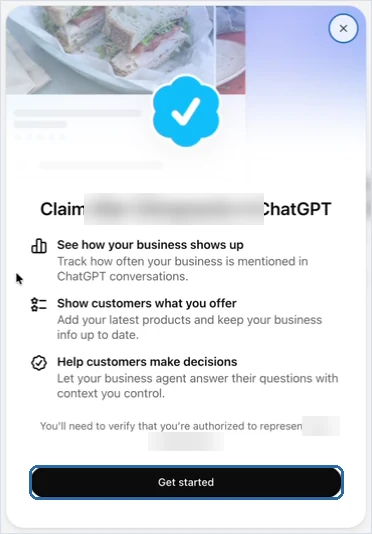
Click your listing. A window titled “Claim [your practice] in ChatGPT” lists what you get: see how your business shows up, show customers what you offer, and help customers make decisions. Click Get started.
Choose website domain verification
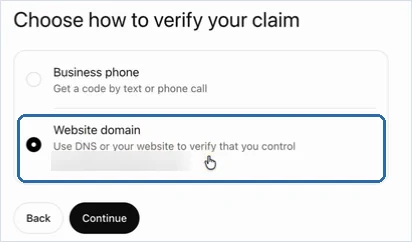
Next, ChatGPT asks how you want to verify your claim. The options depend on the listing. Ours showed Business phone (a code by text or call) and Website domain (a DNS record on your site’s domain). OpenAI’s help page also lists business email and Shopify for some listings.
We recommend the website domain option. Phone codes go to whatever number ChatGPT has on file, which may be your call-tracking number, an old line or a phone tree that can’t read a text. A DNS record proves you control the website, and if your web team or agency already manages your DNS, it takes about two minutes.
Copy the TXT record
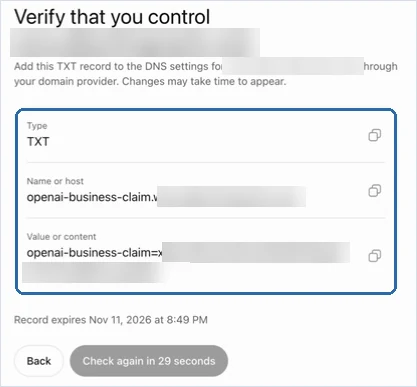
ChatGPT shows a TXT record with three parts: the type (TXT), a name or host that starts with openai-business-claim, and a long value that starts with openai-business-claim=. Each has a copy button. The record expires 24 hours after it’s created, so add it now.
Add the record at your DNS host
In your DNS host, add a new record. In Cloudflare, that’s DNS, Records, Add record:
- Set Type to TXT.
- In Name, paste only the part before your root domain. Most DNS hosts add the domain for you, so if ChatGPT shows
openai-business-claim.www.yourpractice.com, the name isopenai-business-claim.www. - In Content, paste the full value.
- Leave TTL on Auto and click Save.
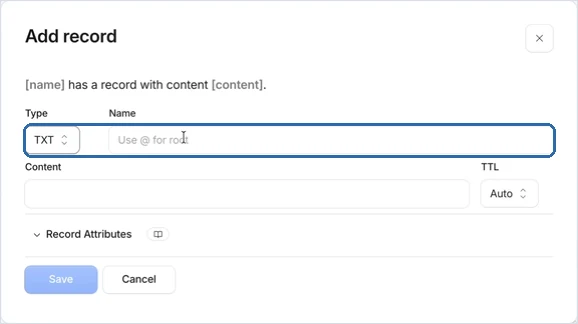
The www trap: our first try didn’t verify. ChatGPT wanted the record on the www version of the domain, and we’d added it without www (the way most verification records go). What worked was adding the same record twice: once with www in the name and once without. If yours sits on “Check again” for more than a few minutes, add the second version.
Verify and wait for review
Go back to ChatGPT and click Verify domain. If the record hasn’t spread yet, the button turns into a countdown (“Check again in 29 seconds”). Cloudflare is usually fast. Other hosts can take longer.
Once the record is found, you’ll see “We’re reviewing your claim,” with three stages: claim received, review in progress, and decision reached. OpenAI emails the decision to the account’s address.
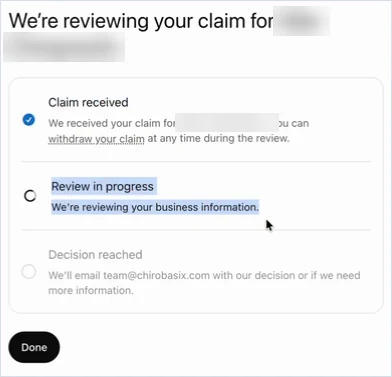
Ours was approved while we were still on the page. The screen changed to “You’ve claimed [your practice]” with a blue check, plus links to start chatting with customers, manage your business and, in our case, an offer of $500 in ChatGPT Ads credit.
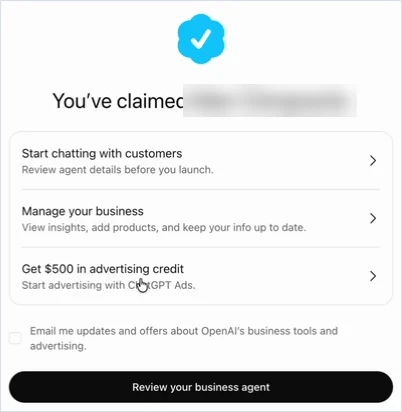
Don’t stop here. You still can’t edit anything until Step 2.
Step 2: Pass the ID Check
Why ChatGPT wants your ID
Open your practice in Business Hub and you’ll see a banner at the top: “Verify your identity with a government-issued ID. To keep your business secure, this is required before editing business info or publishing your business agent.”
This is OpenAI’s guard against listing hijacking, the same problem Google has fought for years with fake ownership claims. It’s run by Persona, an identity verification company. It’s similar to the checks you pass to register a business texting number. The check confirms a real, authorized person is behind the claim.
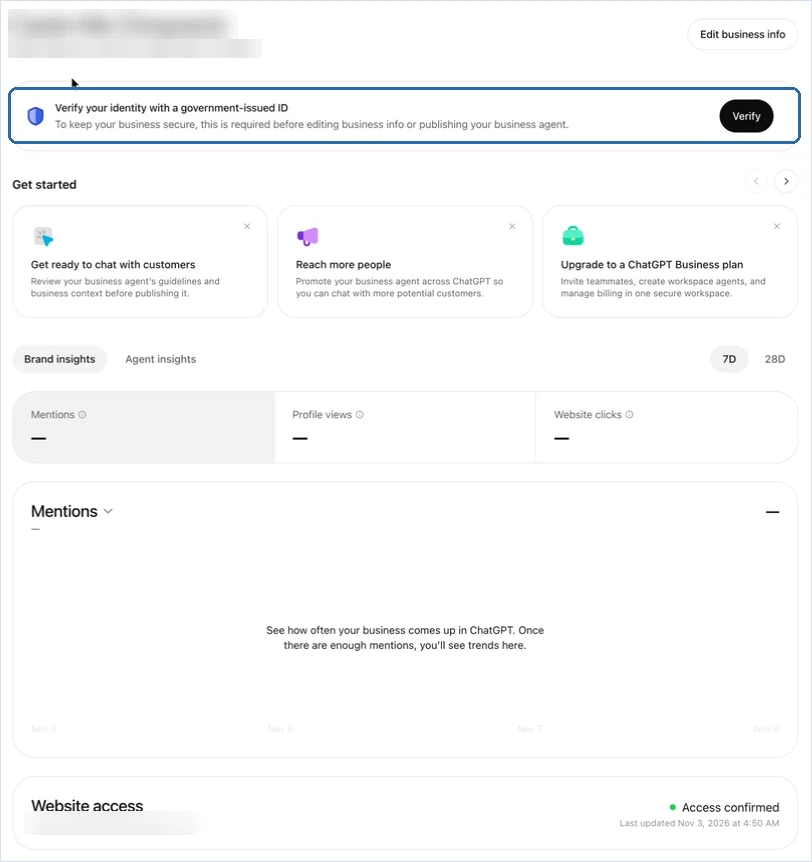
Confirm you’re authorized and consent to Persona
Click Verify. ChatGPT first asks you to confirm you’re authorized to manage the business. If you’re the owner, that’s you. If you’re an agency or office manager acting for the practice, you’re an authorized contractor, and the check worked fine with our team member’s own ID. It didn’t require the ID to match the doctor.
Next comes an OpenAI screen titled “Additional information required.” It explains that OpenAI shares your account information with Persona, and asks you to tick a box consenting to the processing of your biometric information. Per that screen, OpenAI’s shared account information is stored for no more than 7 days, and your biometric information for no more than 30 days. Tick the box and click Begin Verifying.
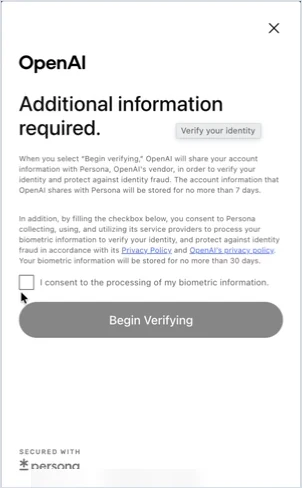
Pick your ID and move to your phone
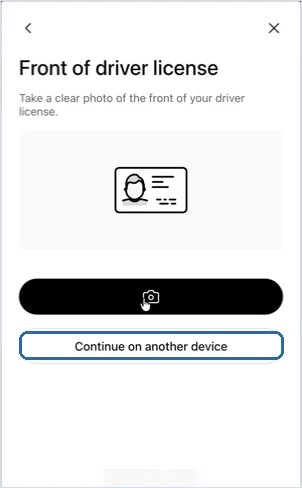
Choose the country your ID is from, then the type: driver license, state ID, passport, passport card, permanent resident card and others.
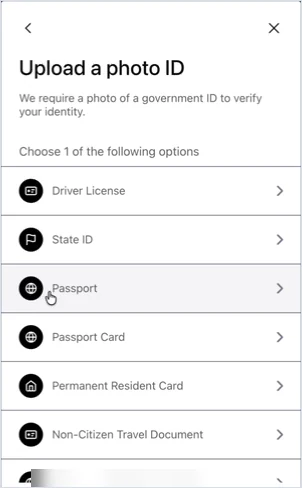
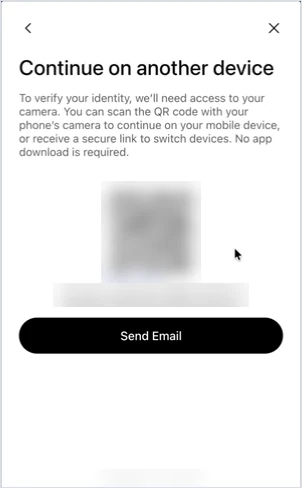
The flow wants a live camera, not an uploaded photo. Our webcam gave us trouble, so we clicked Continue on another device. It shows a QR code: scan it with your phone and the same flow opens there.
Scan your ID, take a selfie, enter the EIN
On your phone:
- Photograph the front and back of your ID.
- Take a selfie so Persona can match your face to the ID.
- Enter the practice’s EIN (the federal tax ID number).
- Enter the business address exactly as it appears on your EIN paperwork. This can be different from your office address, for example if the practice registered at the owner’s home or an old location. Persona checks it against the tax record, so match the paperwork, not the website.
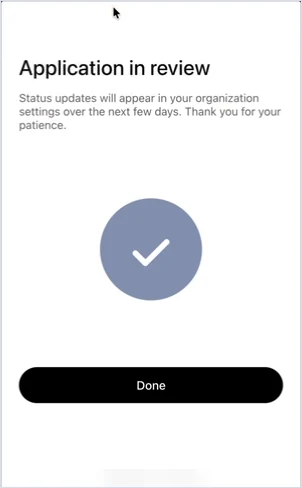
Submit, and your computer screen updates to “Application in review.”
How you’ll know it passed
You won’t get a message. The “Verify your identity” banner just disappears from the business dashboard. For one client, that took about 15 minutes. The screen says updates can take “the next few days,” so give it time. Clicking “Continue verification” or “Check status” while it’s in review does nothing, and that’s normal.
Step 3: Optimize Your ChatGPT Listing
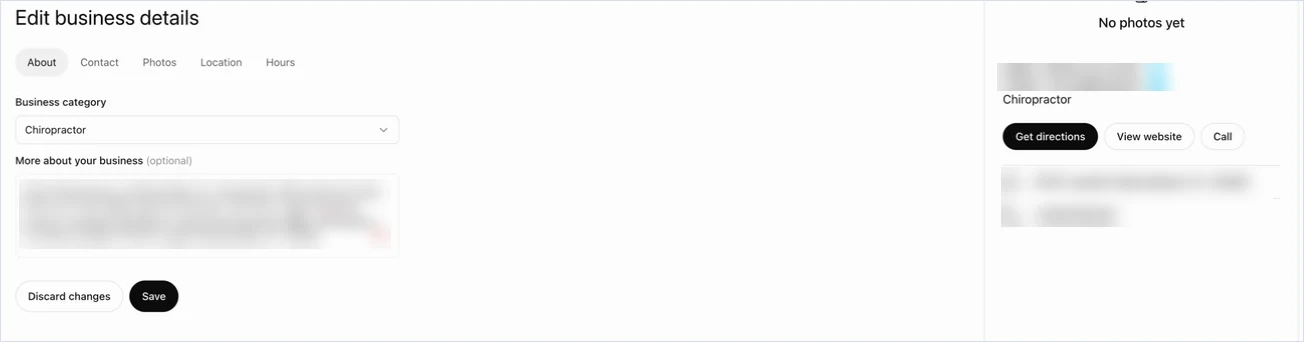
Once the ID check passes, open your practice and click Edit business info. You’ll get five tabs that look a lot like Google Business Profile: About, Contact, Photos, Location and Hours. That’s where the work is. Two other menu items aren’t worth your time yet.
Skip Agent builder and Products for now
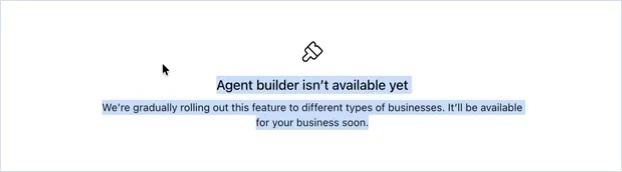
Agent builder is where you’ll eventually set up an AI “business agent” that answers patient questions inside ChatGPT. Right now it says “Agent builder isn’t available yet. We’re gradually rolling out this feature to different types of businesses.” OpenAI’s announcement says business agents are currently for U.S. ecommerce and online service businesses.
When it opens up, keep a chiropractic agent to logistics: hours, location, parking, insurance basics, how to book. OpenAI’s business agents policy bars agents from giving advice that requires a professional license or asking for health details, which lines up with HIPAA common sense anyway.
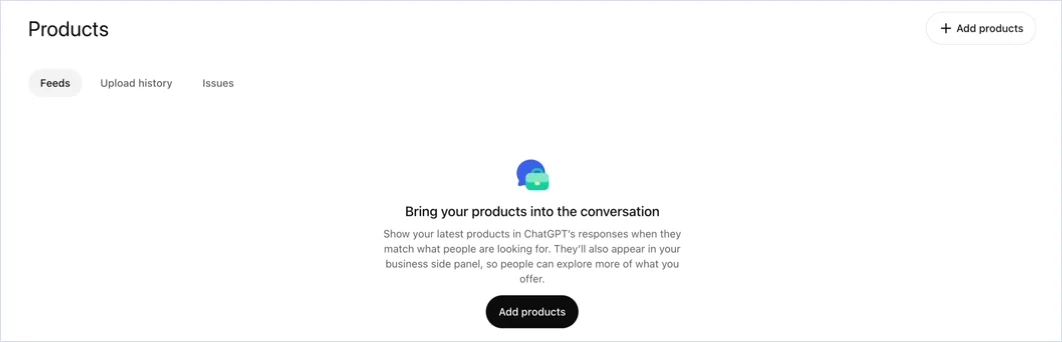
Products asks for a product feed: a CSV file, a hosted feed URL or a Shopify store. It’s built for online stores. A chiropractic office has no feed to connect, so leave it.
About: category and description
Set the business category to Chiropractor. Then write the More about your business description.
The field has a character limit that isn’t shown on screen, so your Google Business Profile description (up to 750 characters) won’t fit. Ours had to come down to two or three sentences, about 280 characters. Use only facts that are on your website and Google profile, and leave out anything that sounds like a promised result:
[Practice name] is a chiropractic office in [City], [State], led by Dr. [Name], DC. We see patients for back pain, neck pain and headaches. New patients are welcome; call or book online.
Keep the wording close to what’s on your website and Google profile. Matching facts across your site, Google and ChatGPT is the same consistency rule behind every local SEO win, and it’s what AI tools lean on when they decide whether to cite your practice.
Contact: phone, email and website
- Phone number: confirm it’s right. If you use call tracking, use the same number that’s on your Google profile.
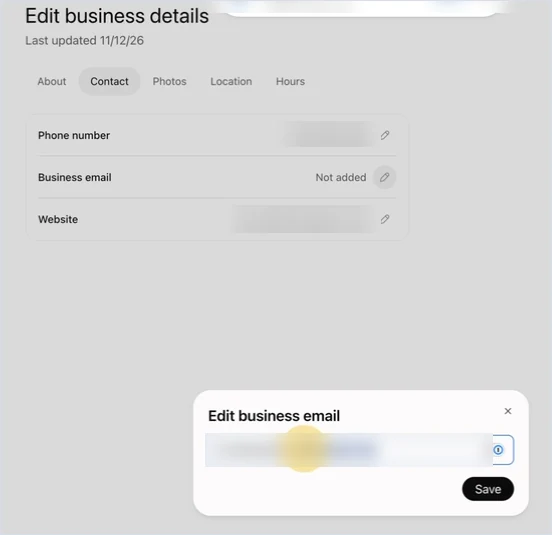
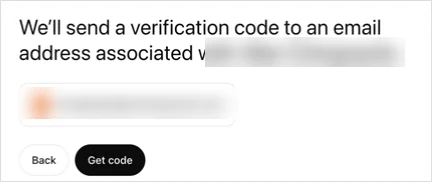
- Business email: add your front desk email, not the doctor’s personal inbox. ChatGPT sends a verification code to it, so have someone at the front desk ready to read it to you.
- Website: check it matches the version of your site that actually loads. Ours was listed with
wwwon a site that doesn’t usewww. Changing the website means verifying the domain again with a new TXT record, the same way as in Step 1.
Photos: upload in small batches
Photos make the biggest visible difference to your profile card. A few tips from our first round:
- Use photos that are already optimized, with descriptive file names. We use the same keyword-named photos we load to Google Business Profile. Nobody knows yet whether ChatGPT reads file names or photo data, but it costs nothing to send the good versions.
- Fix sideways photos first. The uploader doesn’t rotate them for you.
- Order matters. Use the arrows to put your best and most varied shots first: the doctor adjusting, the front desk, the outside of the building. Then delete duplicates.
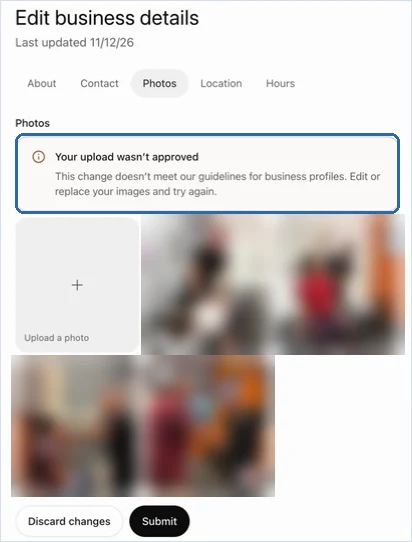
- Upload about three at a time. When we uploaded a big batch, ChatGPT rejected it with “Your upload wasn’t approved. This change doesn’t meet our guidelines for business profiles,” and didn’t say which photo was the problem. One rejected photo was a handshake. Small batches let you find and drop the one it doesn’t like.
Location and hours
Location usually pulls in your address. Check the street, suite number and map pin.
Hours: enter the same hours as your Google profile, including split days (for example 9 to 12 and 3 to 6), and set the business time zone. The time zone list is sorted by city, so for Eastern time pick Eastern Time (Detroit) or (New York).
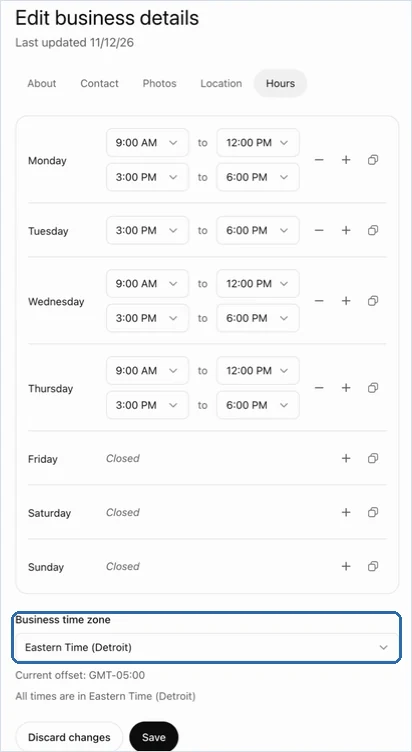
Click Save on each tab. Then refresh the page to check your changes stuck (see the next section for why).
Troubleshooting ChatGPT Business Hub
This is a beta, and it acts like one. Here’s what we hit in the first week and what fixed it.
| Problem | What’s going on | What to do |
|---|---|---|
| DNS record won’t verify | ChatGPT may want the record on the www host | Add the same TXT record twice, with and without www in the name |
| Record expired | TXT values expire 24 hours after they’re issued | Start the verification again for a fresh value |
| “Couldn’t refresh your profile. Your unsaved edits are still here.” | The save usually worked; the page just didn’t update | Refresh the page and check before redoing anything |
| “Your upload wasn’t approved” | One photo in the batch broke a guideline, and it won’t say which | Remove the batch and upload about three at a time |
| ID check stuck on “in review” | Normal. There’s no notification | Wait. The banner disappears when it’s approved |
| “Continue verification” does nothing | You already submitted | Ignore it while the review runs |
| Webcam won’t work for the ID scan | The flow needs a live camera | Use Continue on another device and finish on your phone |
| Wrong address on the listing | Old data from wherever OpenAI sourced it | Claim it anyway, then fix it on the Location tab |
| Changed the website, now it wants verification again | A new website means a new domain check | Add the new TXT record for the new domain |
Expect the interface to change. OpenAI shipped this on November 10, and some of what we saw this week will look different in a month.
What We Don’t Know Yet
We’d rather tell you what’s unproven than guess. As of November 13, 2026:
- How ChatGPT picks which practices to recommend. OpenAI’s help page says claiming doesn’t guarantee visibility, and that advertising doesn’t influence ChatGPT’s independent answers. Beyond that, OpenAI hasn’t said.
- Whether photos, file names or the description affect recommendations. We complete everything because it helps the patient who opens the card. We’re not claiming it moves rankings.
- What insights will show. The dashboard has mentions, profile views, website clicks and top discovery topics, but numbers only appear once there’s enough activity. Day-one dashboards were blank across the board.
- When business agents open to local practices, and what they’ll be allowed to do for a health practice.
- Pricing. We paid nothing, and OpenAI says no Ads account is needed to claim, but it hasn’t published pricing for the beta.
- Multi-location management. Claiming the main brand doesn’t claim its locations. Each office is its own claim and, so far, its own ID check.
We’ll update this guide as OpenAI answers these. For now, what holds is that your Google Business Profile is still the foundation. Keep it complete and current (our Google Business Profile guide for chiropractors covers it), keep your name, address and phone identical everywhere, and keep the reviews coming. AI answers lean on the same signals. Our AEO and GEO guide for chiropractors has the bigger picture.
Frequently Asked Questions
What is ChatGPT Business Hub?
ChatGPT Business Hub is OpenAI’s dashboard for managing your business profile inside ChatGPT. It launched in beta on November 10, 2026 as part of Businesses in ChatGPT. Once you claim your listing, you can edit your details, photos and hours, and see how often ChatGPT mentions you.
Is ChatGPT Business Hub free for chiropractors?
We paid nothing to claim, verify or optimize any of our clients’ listings, and OpenAI’s help page says you don’t need an Ads account to claim one. OpenAI hasn’t published pricing for the beta, so treat it as free today and watch for changes.
How do I claim my chiropractic practice on ChatGPT?
Go to chatgpt.com/business-hub, search your practice name, pick the listing with your correct address and click Get started. Then verify ownership. We recommend the website domain option: add the TXT record it gives you at your DNS host and click verify.
Why does ChatGPT Business Hub need my driver’s license and EIN?
OpenAI runs an identity check through Persona before anyone can edit a claimed profile. It confirms a real, authorized person is managing the business, so nobody can hijack your listing. You scan a government ID, take a selfie and enter the practice’s tax number and address.
How long does ChatGPT Business Hub verification take?
The domain check went through within minutes once our TXT record was live. The ID check took about 15 minutes for one client and longer for another. There’s no confirmation message: the Verify your identity banner simply disappears when it’s approved.
Can my marketing agency claim my ChatGPT listing for me?
Yes. We claim listings for our SEO clients with our agency’s ChatGPT account and our DNS access, and the ID check accepted a team member’s own ID as an authorized contractor. You’ll still need to give us the practice’s EIN and the address on your EIN paperwork.
Want Us to Handle It?
Claiming, verifying and optimizing ChatGPT Business Hub is now part of onboarding for every CHIROBASIX client on one of our SEO programs, right alongside the Google Business Profile build. If you’d rather spend the hour with patients, book a call and we’ll show you where your practice stands on Google and in ChatGPT.
Updated November 13, 2026. Screenshots are from our team’s training videos recorded November 10 to 12, 2026, with client details blurred.
Keep reading
22 Chiropractic Website Features That Turn Searches Into Booked Patients
The 22 features a chiropractic website needs to get found on Google and AI answers, earn trust and book new patients, with a self-check you can run on your own site today.
CHIROBASIX vs Perfect Patients, iMatrix, OnlineChiro, ChiroCandy and Inception
Seven chiropractic marketing agencies side by side on services, published pricing, contract terms, website ownership and Google reviews, every fact linked to the agency's own site and checked October 28, 2026.
Google Ads for Chiropractors: The 2026 PPC Guide
How to run Google Ads for a chiropractic practice: which campaign types matter, the keywords and negatives to start with, what to count as a conversion, what clicks and leads cost in 2026, and the mistakes we fix most often.
Want this kind of strategy built for your practice?
Book a free consultation. We'll audit your current marketing and map out the omnipresence plan for your local market.
Book A Free Consultation